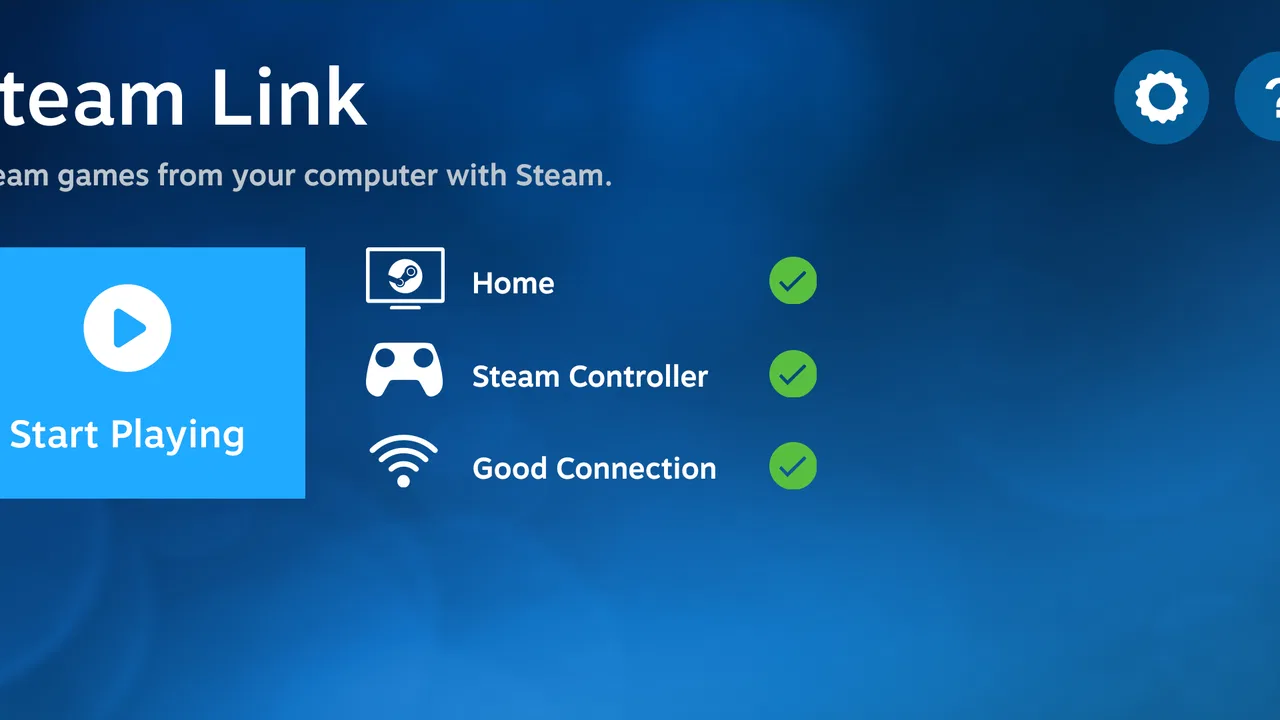
Steam Link
- 3.3
- Rating
- 10.00M
- Installs
- Free
- Price

 Analysis by App-foxy
I use Steam Link when my gaming PC is in one room and I want to play from somewhere more comfortable. That simple starting point explains both its appeal and its limits: this is not a separate game store or a cloud-gaming service, but an entertainment app that sends the picture and sound from a computer running Steam to a supported mobile device. I can then use touch controls, a connected controller, or another compatible input method to control the game remotely.
Developed by Valve Corporation, Steam Link is free and aimed at everyone from a content-rating perspective. It has become a familiar option for people who already own a Steam library and want to make better use of it away from their desk. The app has passed ten million installs, while its average rating sits at 3.3 from roughly fifty-two thousand ratings and about three and a half thousand written reviews. Those numbers tell me something useful: the idea is popular, but the experience depends heavily on the network, the host computer, and the device used at the other end.
From a desktop game to a playable screen
I like to think of Steam Link as a way to change where I play, not what device runs the game. In this section, I’ll look at the practical handoff from a desktop session to a phone or tablet, including the setup choices that make the transition feel less fiddly. The next section turns to how those choices affect responsiveness once a game is underway.
You May Also Like

 Blood Strike: 2.5 Anniversary
Blood Strike’s Loadouts Turn Every Drop Into a Tactical Gamble
A close look at Blood Strike’s custom loadouts: how fast access to signature weapons reshapes its battle royale rhythm, rewards preparation, and narrows the gap between fights.

 Pandora - Music & Podcasts
Pandora’s Music Is Easy to Start, but Harder to Recover
Pandora’s strength is its low-effort path from a seed to a station. Its weak spot is how much confidence it asks you to place in connection, setup, and quiet recovery.

 8 Ball Pool
 Is Built on Rivalries, Rematches, and Routine
A close look at the rivalries, rematches, shared routines, and unanswered safety questions that turn a quick pool match into a persistent mobile community.

 Samsung Music
’s Quiet Strength Is Playing What You Already Own
Its reach comes less from spectacle than from dependable access to a personal library. That simplicity is both the app’s strongest retention engine and its ceiling.

 AccuWeather: Weather Radar
AccuWeather Review: A Quick, Clear Forecast for Everyday Decisions
For everyday plans, the best forecast is the one you can understand quickly. AccuWeather makes rain timing, radar, and local conditions easy to act on, with a few trade-offs.

 Hill Climb Racing
Why Hill Climb Racing Still Turns Crashes Into One More Run
A tiny car, a bumpy hill and one more upgrade: Hill Climb Racing keeps resurfacing because its simple chaos makes every near-miss feel personal.
More From Our News Desk
View All News


The starting condition matters more than the app itself
Before opening the app, I think about the setup rather than the game. Steam Link needs a computer with Steam available and a game ready to run there. The phone or tablet is only receiving the stream and sending controls back, so the quality of the result is tied to the entire chain. A powerful mobile device cannot fully rescue a weak connection between the computer, the router, and the screen in my hands.
My preferred starting point is a desktop computer that is already connected reliably to the home network, with the mobile device using the same network. That arrangement reduces unnecessary handoffs. If the computer is connected through a dependable wired connection while the phone uses strong Wi-Fi, the stream has a much better chance of feeling responsive than when both ends are relying on a congested wireless connection.
This is also why I do not treat the app as a replacement for installing games on a phone. The game still runs on the computer. Steam Link changes where I see and control that game, rather than moving the game itself to mobile hardware. For someone without a Steam library or a computer available to host it, the app is unlikely to solve the problem they are trying to solve.
Pairing the devices without losing the purpose
The first-use process is straightforward in spirit: install the app, identify the computer running Steam, and connect the two devices. The important handoff happens here. Steam Link has to find the host computer, and the computer has to accept the relationship. If the devices are on different networks or the computer is asleep, the process can stop before any game begins.
I recommend doing the initial setup near the computer rather than from the sofa. It is much easier to confirm that Steam is open, check which computer is being selected, and resolve a pairing prompt while standing beside the host machine. Once the connection works, moving to another room becomes a practical test instead of a guessing exercise.
A useful habit is to launch Steam Link before settling in for a long session. This gives me time to notice whether the computer is visible and whether input is reaching Steam. It also separates setup trouble from game trouble. If the Steam interface itself feels delayed, changing games will not fix the underlying connection.
Choosing the right input handoff
Touch controls are convenient for navigating menus and trying a game briefly, but I would not make them my default for every genre. They can cover the basics when I have no controller nearby, yet complex games often become uncomfortable because physical buttons provide clearer feedback and more precise timing.
A compatible controller is usually the better handoff for action games, platformers, racing games, and anything that expects several simultaneous inputs. The controller communicates with the mobile device, the mobile device sends those commands through Steam Link, and the computer applies them to the running game. Every stage adds a possible point of friction, so a good physical controller can make the overall experience feel much more natural even though it does not remove network delay.
For slower strategy games, management titles, turn-based adventures, and menu-heavy experiences, I am more forgiving. These games often tolerate a little delay and can work well from a tablet screen. In those cases, the larger display can be more valuable than perfect reaction speed, especially when I want to play from a couch or bed instead of sitting at a desk.
Launching the game and handing over the screen
Once the connection is active, the mobile screen becomes a window into the Steam session. I can browse the library and start a game from the remote device, but the computer remains the place where the software is actually running. This distinction affects how I plan a session: the computer needs to remain available, and another person using that machine may interrupt the arrangement.
The handoff from desktop monitor to phone or tablet is most successful when I prepare the game in advance. I like to close unrelated windows, leave the computer in a sensible position, and start with a title that I already know works well with a controller. That removes several variables at once. If I begin with an unfamiliar game, unusual controls, and a weak wireless signal, it becomes difficult to tell which part of the setup is responsible for a poor result.
Steam Link is especially useful for games that already support a controller and do not require constant reading of tiny text. A tablet can make menus and inventory screens easier to inspect than a phone, while a phone is more convenient for short sessions. The choice is not only about screen size; it also affects how comfortably I can hold the device and whether the controls obscure important parts of the picture.
What the complete workflow feels like
In an ordinary evening scenario, I might finish work at my desk, leave the gaming computer in the study, and move to the living room with a phone and controller. I open the app, connect to the computer, select a game, and continue from a more relaxed seat. The outcome is not that my phone suddenly runs a demanding PC game. The outcome is that I can use the computer’s Steam library without staying physically beside it.
That difference is the app’s strongest practical idea. It gives an existing library a second location. I can use it for a short session while someone else is using the main monitor, or I can play a title that feels better on a larger sofa setup. It is also useful when the desk is uncomfortable or when I want to keep the computer in a quieter room while playing elsewhere in the home.
There is a small but important psychological advantage too: I do not need to reorganize my library around mobile versions. My progress, installed games, and desktop environment remain connected to the computer-based Steam setup. The trade-off is that I am still dependent on that computer being ready, so the freedom is about location rather than complete independence.
Where the handoffs become visible
Streaming makes delays easier to notice than ordinary local play. A button press travels from the controller or touch surface to the mobile device, then across the network to the computer. The computer renders the next frame, sends the image back, and the mobile device displays it. Even when each step works, the total path can feel slower than playing directly at the desk.
That delay is not equally damaging in every game. It may be barely noticeable in a turn-based title and frustrating in a fast competitive match. I would be cautious about using Steam Link for games where split-second timing decides the result, particularly if the network is busy or the wireless signal changes as I move around the home.
Image quality can also fluctuate. A stream that looks clear in one room may become less stable behind walls or farther from the router. I do not judge the app after only a quick test beside the access point. I test it in the place where I actually intend to play, because the real outcome depends on that physical route rather than on the app screen alone.
Sound is part of the same chain. If audio arrives late or briefly cuts out, the game can feel wrong even when the picture seems acceptable. Headphones connected to the mobile device can make the session more private, but they also add another piece of equipment to manage. For a casual evening, that is usually fine; for a quick spontaneous session, it can make the process feel less immediate than simply playing locally.
When the flow breaks before play begins
The most common frustration is discovering that the computer is not ready. Steam may be closed, the host may be asleep, or the device may not be visible from the mobile network. I find it more efficient to check the computer first than to repeatedly restart the app. The app can only connect to a host that is available and reachable.
Another break occurs when someone needs the computer for another task. Because the game is running there, the remote session is not isolated from the desktop. A notification, an update, a system prompt, or another person taking control can affect what I see. This makes Steam Link a poor choice when the host machine must remain available for uninterrupted work.
Input can be the next weak point. A controller may connect to the phone but still behave differently from the arrangement I use at the computer. Some games are designed around keyboard and mouse, and touch overlays are not a perfect substitute. I would skip this app for a title whose enjoyment depends on precise mouse movement unless I had already tested the controls and accepted the compromise.
What I would troubleshoot first
I start with the simplest checks: is Steam open, is the computer awake, are both devices on the intended network, and does the connection work before I launch the game? This order prevents me from changing several settings at once. If the Steam interface is already lagging, I focus on the network path. If menus respond well but a particular game feels awkward, I look at its control scheme and display layout instead.
Moving closer to the router is a useful diagnostic, not necessarily a permanent solution. If the stream improves immediately, the issue is probably the wireless route through the home. If it does not, I then examine the host computer, controller connection, and the game itself. This simple comparison can save time because it tells me whether the problem follows the room or follows the game.
I also avoid judging performance from a single demanding title. A slower adventure game and a rapid action game place different demands on the same setup. Testing one of each gives a more honest picture of what Steam Link can do for me. The app may be excellent for relaxed library access while still being unsuitable for competitive play.
How it compares with the usual alternatives
Compared with playing directly at the computer, Steam Link offers comfort and flexibility but gives up some immediacy. Direct play removes the streaming path and usually provides the clearest picture, fastest response, and simplest controller arrangement. If I am already at the desk and want the best technical experience, I have little reason to add the app.
Compared with native mobile ports, Steam Link can expose a much broader part of a Steam library, including games that were never adapted for mobile. The cost is that the computer must remain involved, and the controls may not translate cleanly. A well-made mobile version is usually easier to start and more independent, while Steam Link is more useful when I specifically want the desktop copy and its existing progress.
Compared with cloud gaming, the app does not move the host computer into a remote data center. That can be an advantage for people who want to use hardware they already own and keep the session within their home setup. It is also a limitation: I cannot treat the app as a way to play from anywhere without considering whether my own computer is powered, connected, and reachable.
For someone choosing between a tablet and a dedicated handheld PC, Steam Link is the lighter commitment. It can turn an existing mobile device into a convenient second screen, but it does not provide the independence of hardware that runs games locally. I see it as a companion workflow rather than a complete handheld replacement.
Who gets the most from it
I recommend Steam Link to people who already have a Steam library, a computer that stays available at home, and a reliable network between the two rooms they use. It is particularly good for players who prefer story-driven games, slower genres, or controller-friendly titles and want to move away from a desk without buying another gaming system.
It is also a sensible option for households where the main monitor is shared. I can leave the computer in its usual place and continue a game elsewhere, provided the host is not needed for something else. That is a practical benefit, not just a novelty, because it changes when and where an existing library can be used.
I would advise skipping it if the goal is completely portable gaming with no computer involvement. I would also be cautious if the home network is unreliable, if the intended games demand extremely fast reactions, or if keyboard-and-mouse input is central to the experience. In those cases, direct PC play, a native mobile release, or a locally running handheld may be a better fit.
Long-term value and current expectations
The app is free, which makes experimentation easy. I can test it with the devices and games I already own before deciding whether a controller, tablet, or network improvement would make the setup worthwhile. Its current version is 1.3.30, and it supports devices running Android 5.0 or later, so the practical question is less about buying access and more about whether my existing equipment creates a comfortable path from computer to screen.
Its release on May 17, 2018, also places it in a mature part of the remote-play conversation rather than making it feel like an experimental new idea. Valve’s focus is clear: connect the Steam library to another screen and let the computer do the heavy work. That clarity helps me understand what to expect and prevents the common mistake of judging it as if it were cloud gaming or a mobile storefront.
After using it as a complete workflow, my opinion is positive but conditional. The best result comes when the computer is prepared, the network is steady, the game suits a controller, and the destination room has a strong connection. Under those circumstances, Steam Link makes a desktop library feel much more flexible. When any of those handoffs fail, the experience can quickly become a troubleshooting session instead of entertainment.
My recommendation is simple: try it if you want to relocate your Steam sessions around the home and already have the computer to support them. Start with a forgiving game, test the exact room where you plan to play, and use a physical controller when precision matters. If that first real-world route feels responsive, the app can become a genuinely useful part of your routine. If it does not, no amount of enthusiasm for remote play will make it a better choice than playing locally.
FAQs for Steam Link
01What is Steam Link and how does it work?
Steam Link is an app that allows you to stream games from your PC to your mobile device or TV, enabling you to play your favorite PC games on different screens. It connects to your Steam library, requiring a stable internet connection and both devices to be on the same network for optimal performance.
02Which devices are compatible with Steam Link?
Steam Link is compatible with Android and iOS devices, as well as smart TVs and any display with a compatible HDMI port if using the hardware version. Ensure your device meets the required specifications for the best streaming experience. Check the app store for compatibility details specific to your device.
03What kind of internet connection is recommended for using Steam Link?
For a smooth gaming experience, it is recommended to use a 5 GHz Wi-Fi network or a wired Ethernet connection. This minimizes lag and ensures a stable connection between your PC and the device you are streaming to. A high-speed internet connection improves the quality of the stream.
04Can I use a controller with Steam Link on mobile devices?
Yes, you can use a controller with Steam Link on mobile devices. The app supports various controllers, including Bluetooth-enabled controllers and Steam Controllers. Connecting a controller enhances gameplay, offering a more comfortable and precise experience, especially for action-packed games.
05Is there any cost associated with using the Steam Link app?
The Steam Link app itself is free to download and use. However, you need to own the games you wish to stream in your Steam library. Some in-app purchases or additional hardware, like a controller, may incur extra costs if desired for an enhanced gaming experience.
Pros
- Easy setup and user-friendly interface.
- Supports various input devices seamlessly.
- High-quality streaming with minimal lag.
- Compatible with a wide range of games.
- Adjustable streaming quality settings.
Cons
- Requires strong internet connection.
- Not all games are fully optimized.
- Limited to local network play.
- May drain battery quickly on mobile.
- Initial setup may confuse beginners.

Steam Link
Gallery